Documentation / User guide
Create an account and an organization
Sign up, create your first organization and find it in the sidebar. Everything you create afterwards (devices, dashboards, alerts) belongs to an organization.
Before you start
An organization groups devices, profiles, dashboards, alert rules and members. Organizations are isolated from each other: a member of one organization sees nothing of the others. One account can belong to several organizations, with a different role in each.
Create the account
- Open the home page and click Create an account (top right).
- Enter your Name, your Email and a Password of at least 10 characters.
- Click Create account. You are logged in and land on the Organizations page.
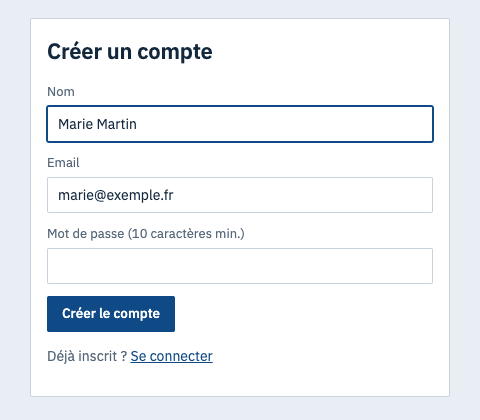
Already have an account? Click Log in and enter your email and password.
Create an organization
- On the Organizations page, in the New organization box, enter the organization Name (for example the name of your company or site).
- The Identifier is filled in automatically from the name. You can change it: 3 to 40 characters, lowercase letters, digits and hyphens.
- Click Create. The organization opens on its Devices page.
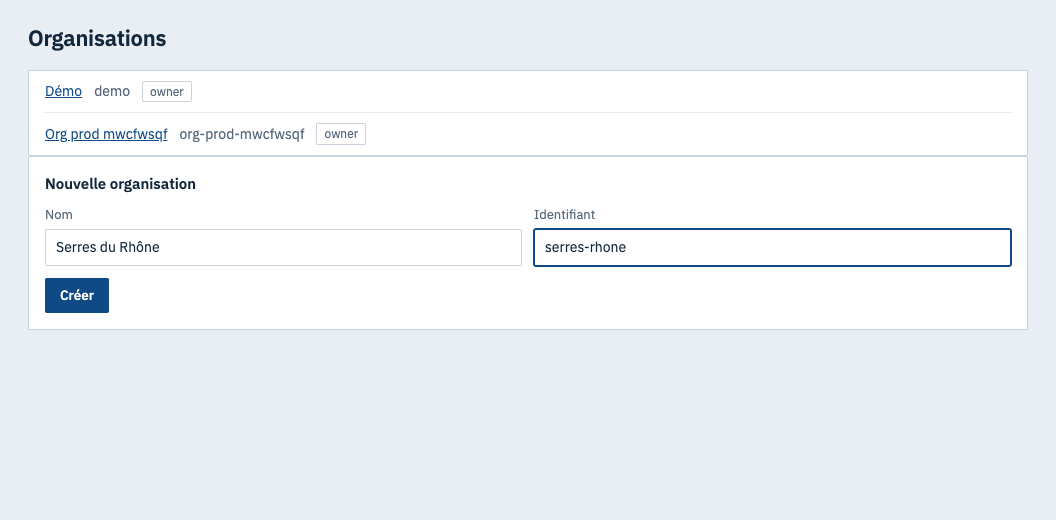
The identifier cannot be changed later: it is part of your devices' MQTT topics (
osc/<identifier>/<device>/telemetry). Choose a short, stable one.
Accept an invitation
If someone invited you to their organization:
- with the invitation link they sent you: open it, log in or create an account with the invited email address, then click Join;
- without the link: log in with the invited address. The invitation appears on the Organizations page under Pending invitations, with the Accept and Decline buttons.
Find your way around the app
Inside an organization, the sidebar gives access to Dashboards, Devices, Alerts, Profiles, Integrations, Members, Organization and Audit log (some entries depend on your role). At the bottom you find the language choice (FR / EN), the Documentation link and Log out. Click the organization name at the top to go back to the list of your organizations.
Next step: add a device and send a first measurement.