
Documentation / User guide
Profiles and decoders
Describe a sensor type once: its channels with label, unit and range, its timestamp field and, for binary payloads, its JavaScript decoder. All devices of that type benefit from it.
Editors can also have a profile created or changed by the AI assistant ("Add a humidity channel in % to the Temperature profile"), after checking its card.
What a profile is for
Without a profile, a device discovers its channels as messages arrive: they are shown with their raw key (temperature) and no unit. A profile provides:
- declared channels: label (
Temperature), unit (°C), type and expected range, shown as soon as the device is created, before the first measurement; - a timestamp field, for equipment that sends the measurement time in the message;
- a decoder, to turn a binary payload (LoRaWAN, Sigfox, MQTT, HTTP) or a JSON in another format into values;
- position options (GPS trackers, see Device location and map) and an MQTT topic template (see MQTT for existing equipment).
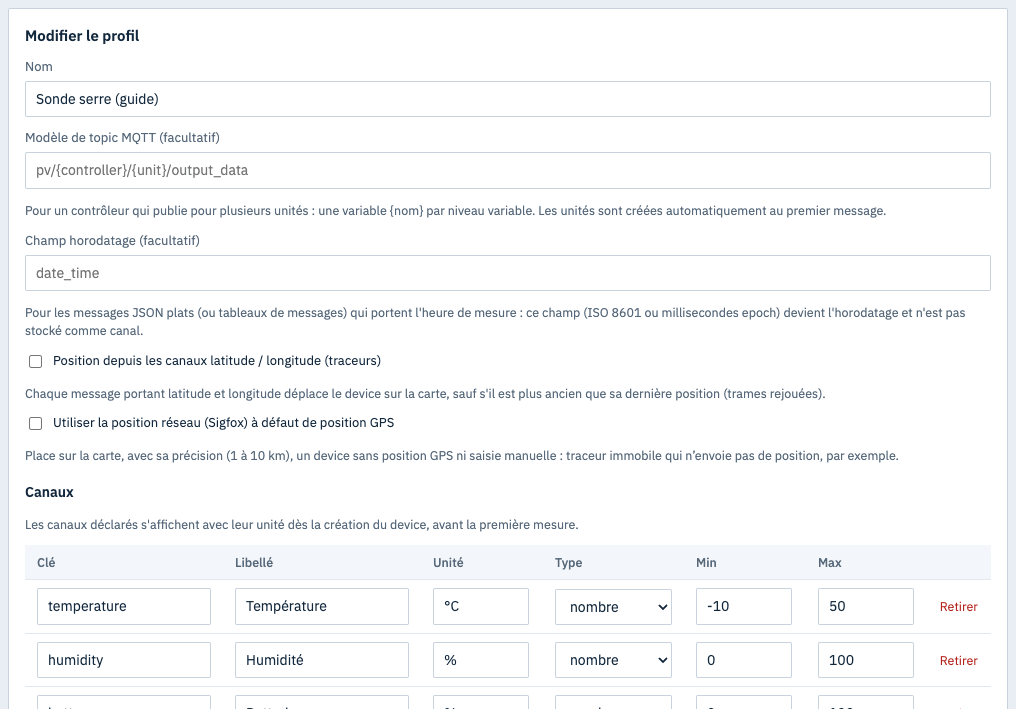
Create a profile and declare its channels
- In the sidebar, click Profiles, then + Profile.
- Give it a Name (for example
Greenhouse probe). - In Channels, click + Add a channel for each measurement, and fill in:
- Key: the exact name sent by the sensor (
temperature); - Label: the displayed name (
Temperature); - Unit:
°C,%,W…; - Type: number, boolean or text;
- Min / Max (optional): the expected range. A value outside the range is flagged on the device page.
- Key: the exact name sent by the sensor (
- Click Save.
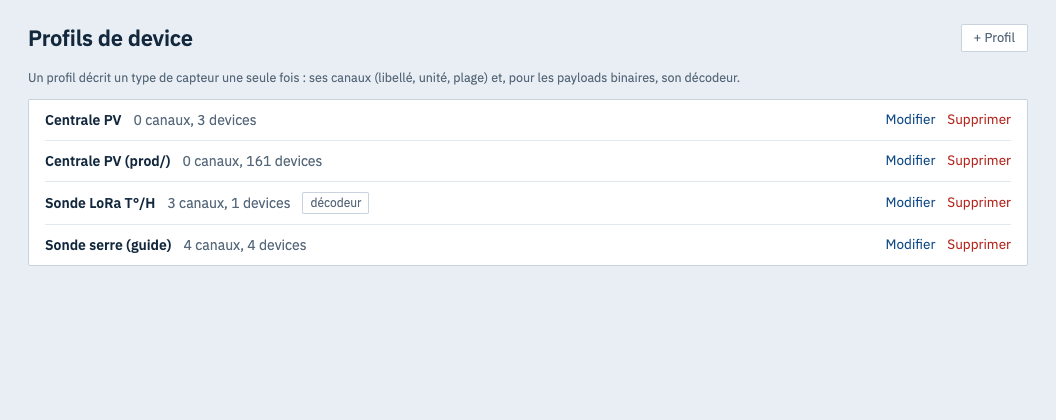
The Device profiles list shows, for each profile, its number of channels and devices, and the decoder badge if it has one.
Assign a profile to a device
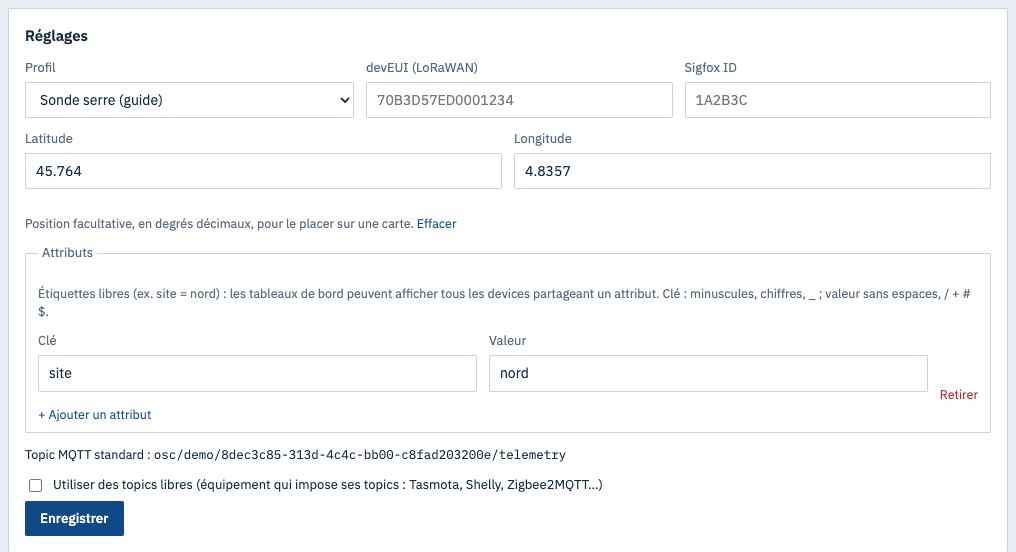
- Open the device page (Devices, then its name).
- In the Settings box, choose the Profile. None (channels discovered automatically) removes the profile.
- Click Save. The device channels immediately take the labels and units of the profile.
Timestamp field
Some equipment sends "flat" JSON objects that contain their own measurement time:
{ "date_time": "2026-11-11T17:07:36.437Z", "hp": 10.7, "temp": 21.2 }
Enter date_time in Timestamp field (optional): this field (ISO 8601 text or milliseconds since 1970) becomes the measurement timestamp and is not stored as a channel. This also works for an array of such objects. A message where the field is missing or invalid is rejected entirely (the reason is shown in Live debug).
Add a decoder
A decoder is a JavaScript function decode(bytes, fPort) that receives the message bytes and returns an object { key: value } (or an array [{ ts, values }] for a batch). It runs in a sandbox: 50 ms maximum, with no network or file access.
- In the profile editor, Decoder section, pick an example in Start from a template, or write your own function. Provided templates: int16 temperature + humidity, JSON encoded as bytes, Tasmota, batch of objects with a timestamp field, HidnSeek trackers (Sigfox).
- In Test payload (hexadecimal), paste a real message, for example
08 6A 30. Fill in fPort for a LoRaWAN message if your decoder uses it. - Click Try the decoder: the result, or the error, is shown below.
- Click Declare the produced channels to add all the resulting channels to the channel list at once, then complete labels and units.
- Click Save.
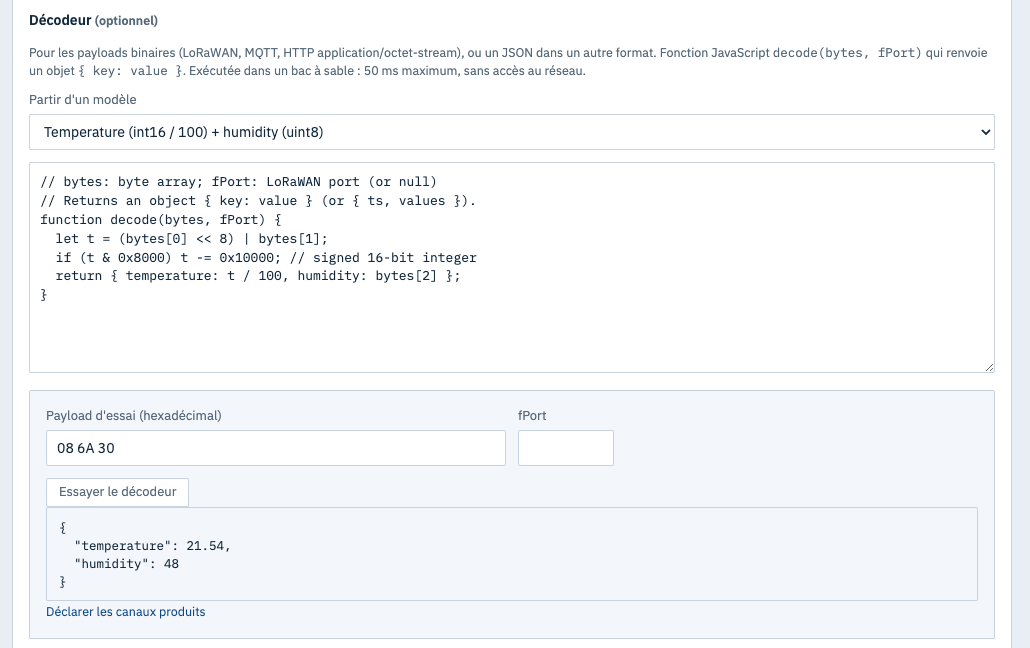
function decode(bytes, fPort) {
  // 2 bytes: signed temperature in hundredths of a degree; 1 byte: humidity in %
  let t = (bytes[0] << 8) | bytes[1];
  if (t & 0x8000) t -= 0x10000;
  return { temperature: t / 100, humidity: bytes[2] };
}
The decoder applies to binary messages (HTTP application/octet-stream, MQTT, LoRaWAN, Sigfox) and to JSON that is not already in the standard format. The function receives a third argument, meta: for an MQTT message, meta.topic contains the received topic (see the Tasmota template); for Sigfox, meta carries seqNumber, station, rssi, snr and time, among others.
Generate a decoder with AI
When the instance has the AI assistant enabled, editors see ✨ Generate with AI next to Decoder. Paste the frame format (a datasheet excerpt, a byte layout, or example frames with the values they should give), choose the protocol and, optionally, list example frames, one per line, in hexadecimal or base64. Click Generate: the proposed decoder is run in the sandbox on your example frames before it is shown, with the output of each frame (if it fails, the AI gets the error and fixes it once). Check the outputs against the values you expect, then click Insert into the editor: the code and the proposed channels fill the form, and you save the profile as usual. Your description is sent to Anthropic (Claude API); each generation counts in the organization's daily assistant quota.
Derived channels (transform)
Below the decoder, the Transform section holds an optional script that computes extra channels from each message: a dew point, a power from voltage and current, whether a tracker is inside its zone. It runs after the decoder (or on JSON received as is), in the same sandbox (50 ms, no network), for every device of the profile.
function transform(values, ctx) {
  // values: { temperature: 21.5, humidity: 60, "sigfox.lat": 48.85, ... }
  // ctx: { device: { id, name, attributes, latitude, longitude, lastSeenAt },
  //        ts, protocol, meta, zones: [{ id, name, kind, geometry, forbidden }],
  //        previous: { key: { value, ts } } }
  return { dewPoint: math.round(math.dewPointC(values.temperature, values.humidity), 1) };
}
values: the channels of the message (after the decoder), including the radio channels added by the network (lora.rssi,sigfox.lat,sigfox.lng…).ctx.device: the device's name, attributes (set on its page, e.g.zone = Depot), position and last message time;ctx.zones: the organization's zones;ctx.previous: the last stored value of each channel of the device (it may lag by a few seconds);ctx.meta: what the decoder receives (MQTT topic, LoRaWAN radio, Sigfox callback withcomputedLocation);ctx.ts: the time of the measurement.- The returned object adds channels at the message time. A key equal to an existing channel replaces it,
nullremoves it,{}adds nothing. Keys follow the channel key rules; values are numbers, booleans or text. - If the script throws an error or takes too long, the message is rejected, with the reason in the device's live debug (
transform_error). Return{}rather than throwing when an input is missing.
Helpers available in the script (coordinates are [longitude, latitude]):
| Helper | Result |
|---|---|
geo.inZone(lng, lat, zone) |
true if the point is inside the zone (polygon or circle) |
geo.zonesContaining(lng, lat, zones) |
names of the zones containing the point |
geo.distanceM([lng, lat], [lng, lat]) |
distance in metres (haversine) |
geo.pointInPolygon(lng, lat, coordinates) |
true if the point is inside the ring [[lng, lat], …] |
units.cToF(c), units.fToC(f) |
°C ↔ °F |
units.kmhToMs(v), units.msToKmh(v) |
km/h ↔ m/s |
math.clamp(x, min, max) |
x bounded to [min, max] |
math.round(x, decimals) |
x rounded to decimals decimals |
math.dewPointC(tempC, rh) |
dew point in °C (Magnus formula), rh in % |
Templates (Start from a template):
- Geofence: zone.inside from the device attribute "zone": give each tracker an attribute
zonenaming one of the organization's zones;zone.insideistrueinside,falseoutside. It uses the GPS position, or the Sigfox network position (sigfox.lat/sigfox.lng) for frames without GPS. - Dew point:
dewPoint(°C) fromtemperatureandhumidity. - Power from U×I:
power(W) fromvoltageandcurrent. - Moved more than N m since last position:
moved(true/false) andmoved.distance_m, compared with the last storedlatitude/longitude.
Try the transform: type sample values as a JSON object (prefilled with the decoder test output), choose a device (the profile's devices are marked ★) for its attributes, position and last values, and click the button: you see what the script returned and the channels that would be stored. With the AI assistant enabled, ✨ Generate with AI writes a transform from a sentence ("compute the dew point", "set zone.inside to true when the tracker is inside the zone named by its zone attribute"), tries it on your sample values first, and inserts it into the editor.
The archived messages of a device (device page, Received messages) show the channels after the transform, run with the profile's current script.
Edit or delete a profile
Click Edit or Delete next to the profile. A change applies to the next messages of all its devices; measurements already stored are not recomputed.