
Documentation / User guide
Alerts
Get notified by email or webhook when a value crosses a threshold, goes out of range, takes a given value, or when a sensor goes silent. Receive reminders as long as nobody handles it, and acknowledge the alert.
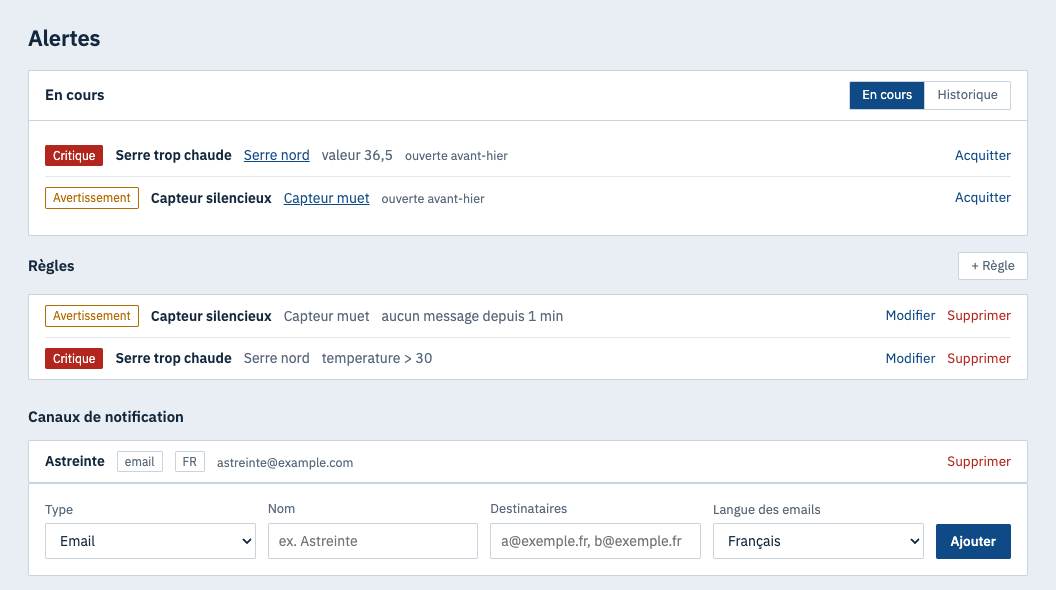
1. Create a notification channel
A channel says where to send notifications. It is created once and used by several rules (owners and admins).
- In the sidebar, click Alerts. Scroll down to Notification channels.
- Choose the Type:
- Email: enter a Name (for example
On-call), the Recipients separated by commas (20 at most) and the Email language; - Webhook: enter a Name and the URL (http or https) that will receive a JSON
POST.
- Email: enter a Name (for example
- Click Add.

For a webhook, a signing secret is shown only once: copy it. Each call carries the x-osc-signature: sha256=… header, an HMAC-SHA256 of the body with this secret, so you can check that the call really comes from OpenSensorCloud. The body is described in the alerts API reference.
2. Create a rule
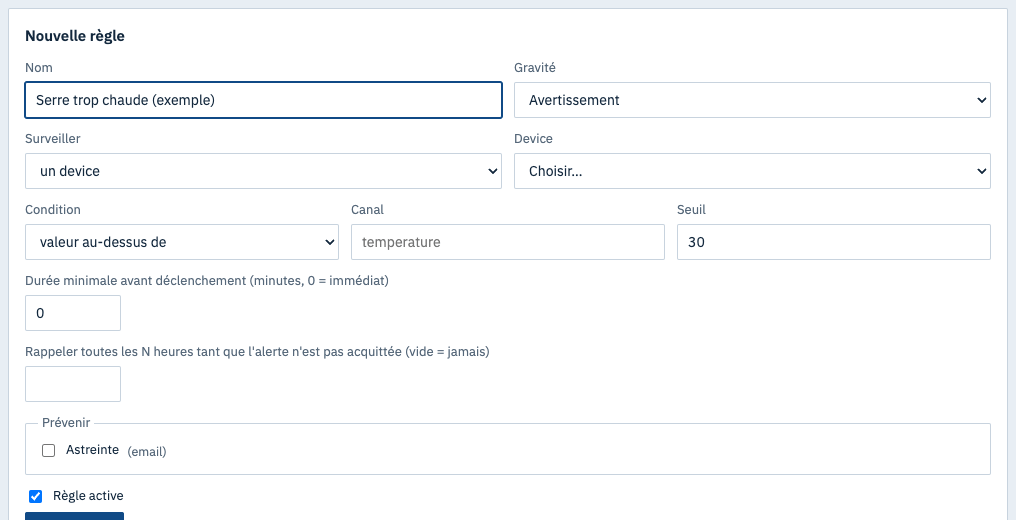
- In Rules, click + Rule.
- Give a Name (
Greenhouse too hot) and a Severity: Info, Warning or Critical. - Watch: a device, all devices of a profile (including those added later), or a set of devices (see Watch a set of devices). Choose the device, the profile or the devices.
- Condition:
- value above / value below a Threshold;
- value outside range: outside Min – Max;
- value equal to: a number,
true/false, or a text; - value becomes / value changes: on a state rather than a threshold (see Value becomes, value changes);
- no message for N Minutes: the sensor has gone silent.
- Choose the watched Channel (except for "no message for").
- Minimum duration before triggering: the condition must stay true for this number of minutes before the alert opens (0 = immediate). This avoids false alarms on an isolated spike.
- Remind every N hours while the alert stays unacknowledged: leave empty to never remind (1 to 168 hours).
- In Notify, check the notification channels.
- Leave Rule enabled checked and click Save.
Describe the rule with AI: when the AI assistant is enabled on the instance, editors see a Describe the rule field above the rules ("alert me when the Pont is silent for 30 minutes", "alert if temperature > 30 for 10 minutes"). Click Propose: the AI finds the device and channel, explains what it understood and fills in the rule form; you choose the notification channels, check, and save. If the request cannot be expressed with the conditions above (a percentage drop, an average, several conditions…), it says so instead of proposing a rule.
Watch a set of devices
With a set of devices, choose All devices, Chosen devices (a list), Devices of a profile or Devices with an attribute (for example site = north, or zone = Depot for a zone alert). Each matching device has its own alert. Membership is checked on every message: a device created or tagged later joins the rule, a deleted device leaves it. The Channel field suggests the channels of the matching devices; you can also type any channel key, for example one computed by a profile transform that has not been received yet.
Value becomes, value changes
- value becomes a value (a number,
true/false, or a text): fires when the channel takes that value, also on the first value received; the notification shows the previous value. Resolve when the value differs again (the alert stays open meanwhile), or never (one notification per occurrence). Typical use:zone.insidebecomesfalse(a tracker left its zone, see Zones), a door state becomesopen. - value changes: fires on every change compared with the previous value (not on the first value), one notification per change with the old and new values. Keep the alert open a number of seconds (0 = closed at once). Typical use: a mode or a status text that should be followed.
3. When the alert triggers
- The alert appears in Open, with its severity, the device, the value that triggered it and its age. The number of open alerts is shown in red next to Alerts in the sidebar.
- A notification is sent when the alert opens, then another one when the condition becomes false again (the alert is resolved).
- If a reminder is set, a reminder notification is sent every N hours as long as the alert stays open and unacknowledged.
4. Acknowledge
Click Acknowledge next to the alert: it is marked acknowledged, reminders stop and the action is recorded in the audit log. The alert stays open until the condition goes away.
History shows all alerts, including resolved ones.
Good to know
- A rule on a profile creates one alert per affected device.
- "No message for" is checked every minute.
- Edit and Delete, next to a rule, let you adjust it; uncheck Rule enabled to suspend it without losing it.