
Documentation / User guide
Members, roles and organization
Invite members with the right role, rename the organization, track its data volume, set the retention period, and find out who changed what in the audit log.
Roles
| Role | Can |
|---|---|
| viewer | view everything: devices, measurements, dashboards, alerts |
| editor | in addition: create and edit devices, profiles, dashboards and alert rules, acknowledge alerts |
| admin | in addition: manage members and invitations, integrations, notification channels, MQTT topics, organization settings, view the audit log |
| owner | in addition: delete the organization. The creator of the organization is its owner. |
Invite a member
- In the sidebar, click Members.
- In Invite a member, enter the person's Email and choose their Role: admin, editor or viewer.
- Click Create invitation.
- Copy the link to share and send it to the person (by email, messaging…). It is shown only once and stays valid for 7 days.
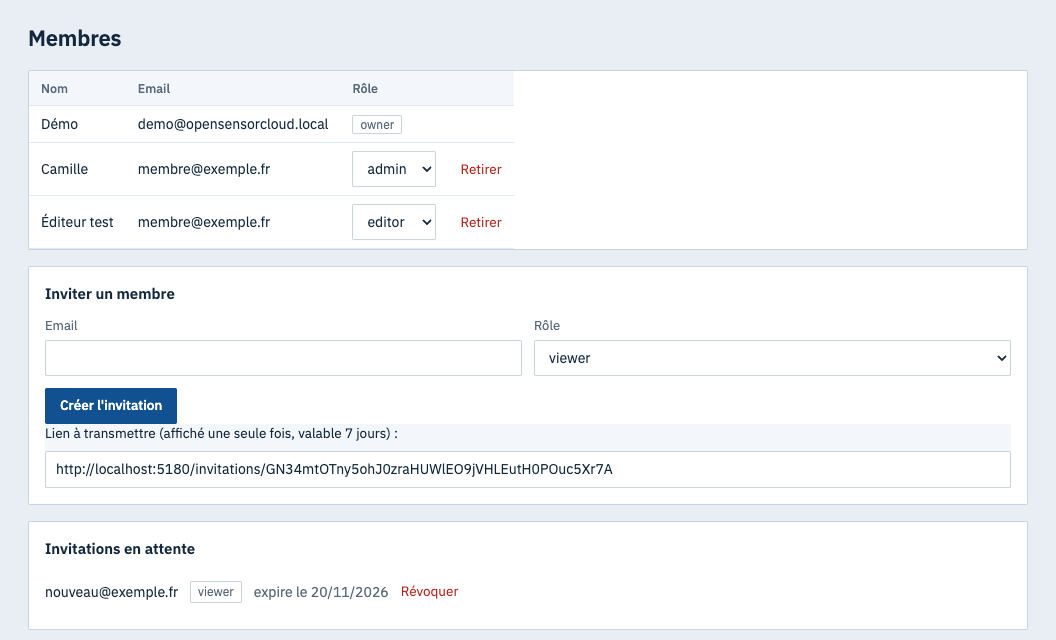
The person opens the link, logs in or creates an account with the invited address, then clicks Join. They can also accept the invitation from their Organizations page (Accept / Decline).
Pending invitations lists the unused invitations; Revoke cancels one.
Change a role, remove a member
In the members table, change the role in the drop-down list, or click Remove. The owner cannot be removed. A removed member loses access immediately (and within a minute at most for a live stream already open).
The Organization page
Owners and admins: click Organization in the sidebar.
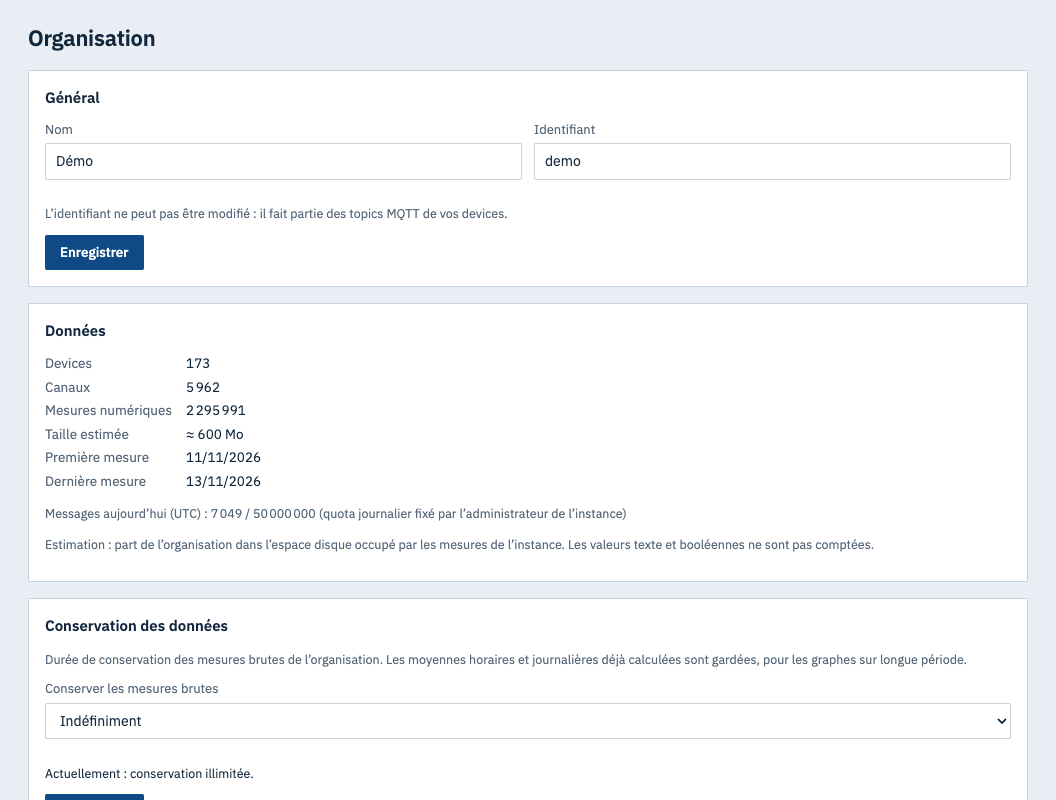
- General: change the Name, then Save. The Identifier cannot be changed: it is part of your devices' MQTT topics.
- Data: number of devices, channels and numeric measurements, estimated size, dates of the first and last measurement, and messages received today against the daily quota (set by the instance administrator).
- Data retention: in Keep raw measurements, choose Forever, a suggested duration, or Other duration… (in days). Hourly and daily averages already computed are kept for long-period charts. If the new duration deletes measurements, a confirmation is required: Confirm deletion. The deletion happens within the hour and is permanent.
Delete the organization
Owner only, in the Danger zone:
- Click Delete organization.
- Type the organization identifier to confirm.
- Click Delete for good.
Devices, dashboards, measurements, alert rules, integrations and members are deleted permanently. There is no way back. The organization disappears at once for all its members; its data is then removed in the background.

The audit log
Owners and admins: click Audit log. All changes made in the organization are listed there, most recent first: Date, By (the account), Action and Changed fields. Only field names are kept, never their values (so a token or a password never appears there). Click Older to go further back in time.
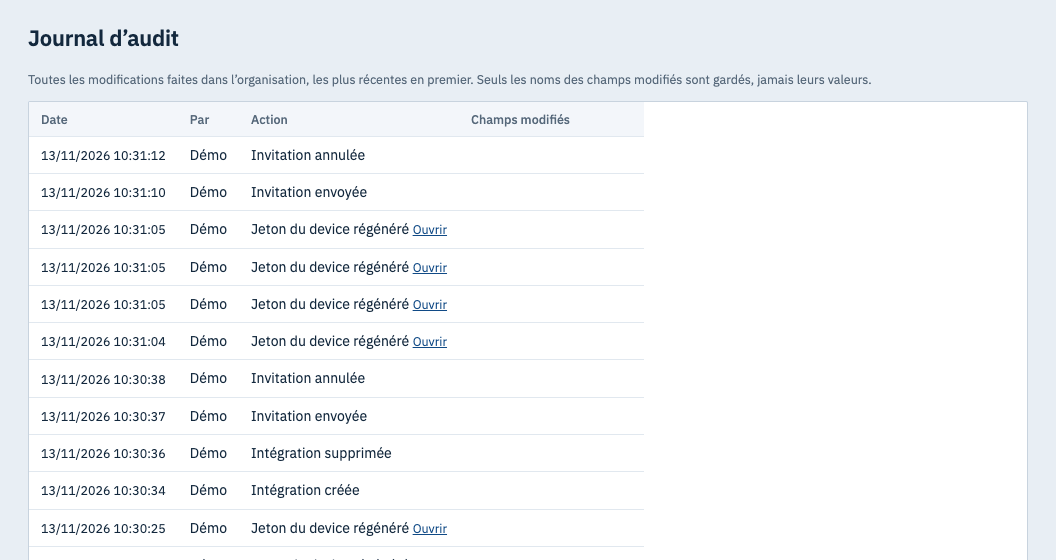
Recorded events include: creation and settings of the organization, members joining, role changes and removals, invitations, devices (creation, change, deletion, token regeneration), profiles, integrations, dashboards and public links, alert rules, acknowledgments and notification channels, assistant conversations started and assistant actions confirmed, assistant enabled or disabled by an instance administrator.
The assistant
The Assistant entry of the sidebar answers questions about the organization's data, in English or French, with your permissions; editors can also have it create a device or an alert rule, after confirming. It is off by default: only an instance administrator enables it for an organization (Administration page), not its owners or admins. Questions and the data read are sent to Anthropic (Claude API) only when you use it.
All the details (panel, charts, actions, assisted configuration, data sent, quotas, limits): The AI assistant.